Photomerge is great for illustrators or artists that work at a large scale and can’t use a traditional flat-bed scanner to document their work. Photomerge lets you select multiple photos and automatically batches them together into a single, large file.
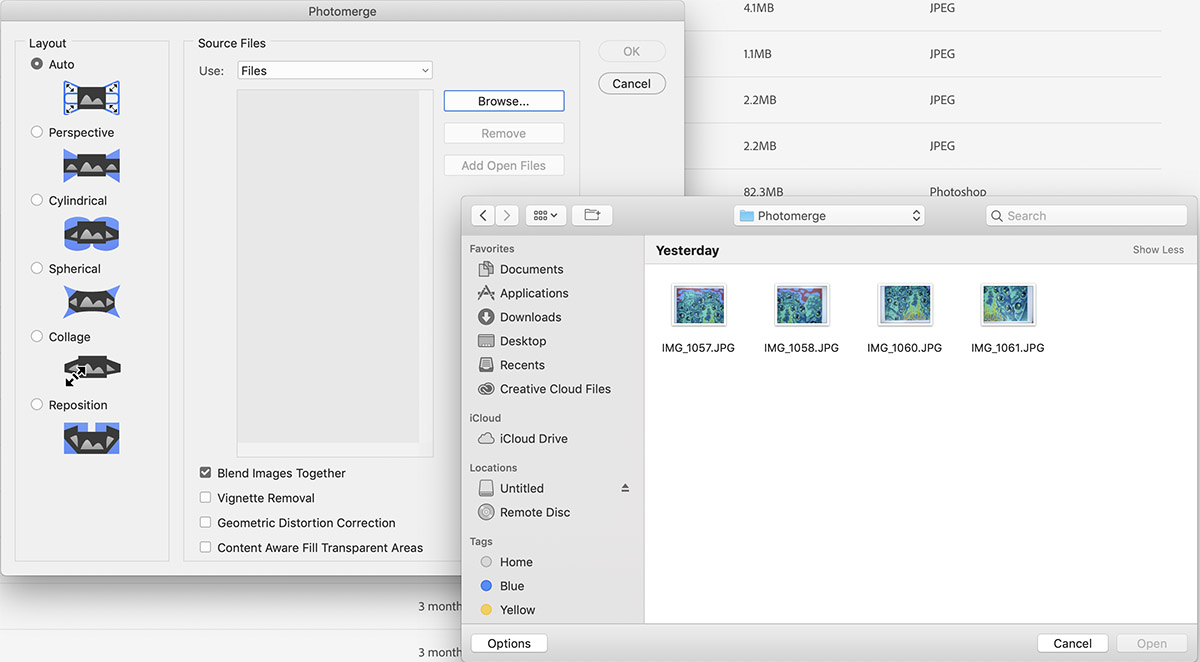
4 different shots of the same painting split up in my finder window.
Find the Photomerge Menu
Select the Photomerge section in File>Automate>Photomerge
Find the Photomerge tool at File>Automate>Photomerge
Select the number of photos you want to merge together.
Select your photos to merge.
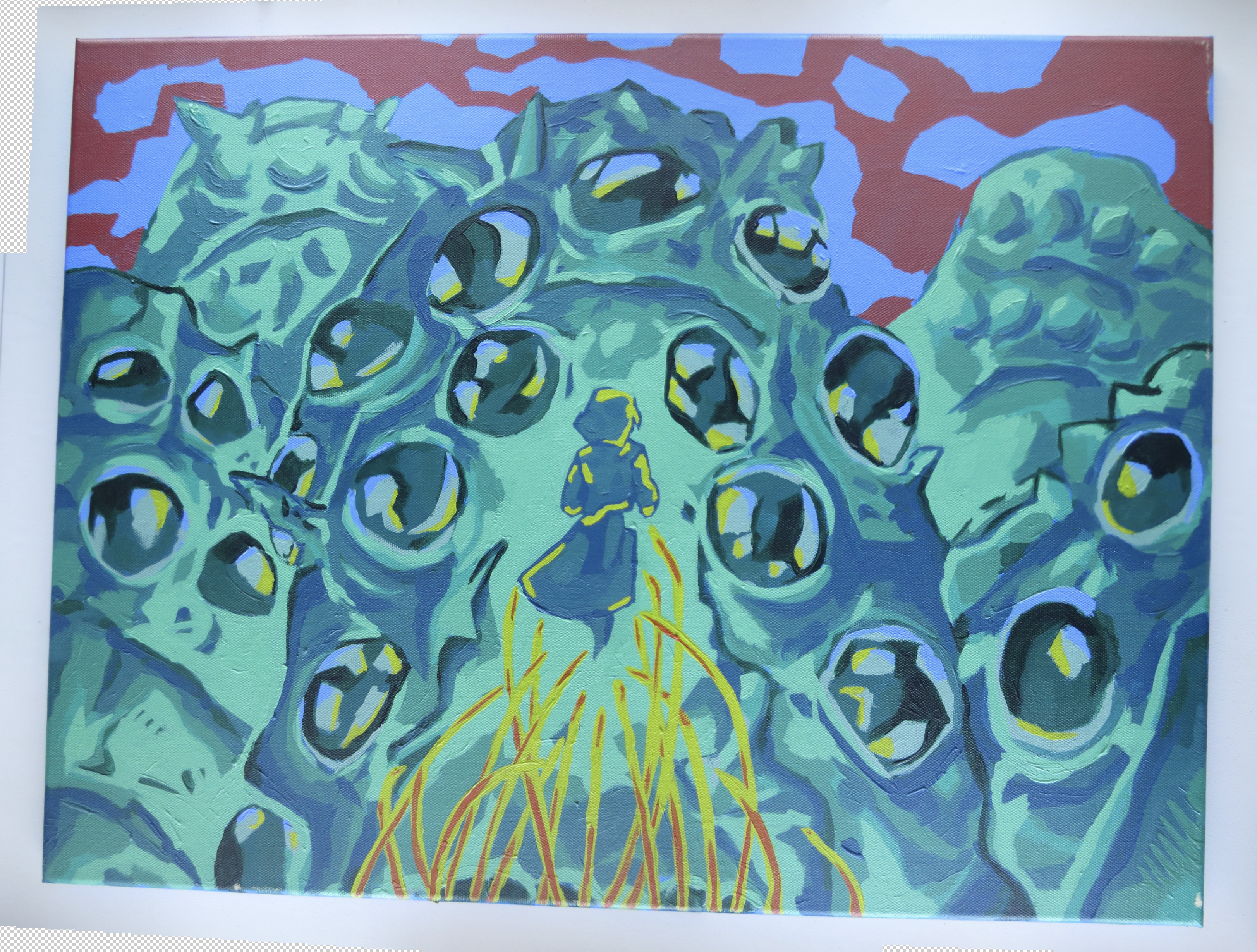
You’ll end up with a Photomerge that might look kind of out of shape at first.
What a mess.
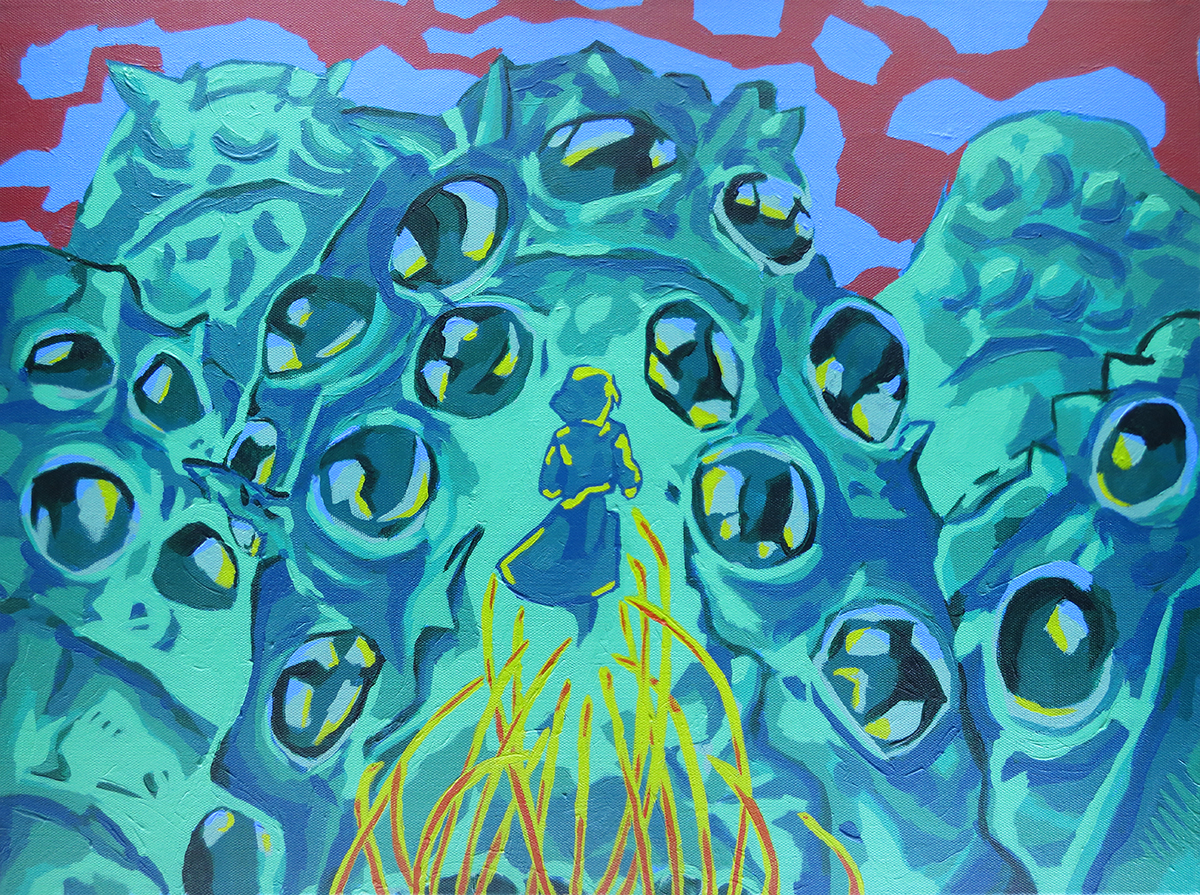
A few tweaks in Photoshop and you have a perfect file ready for professional prints! No scanner necessary!
A print ready file after tweaking with Photoshop!
Photomerge is a simple tool you can use to transfer large artworks into a printer-friendly format.
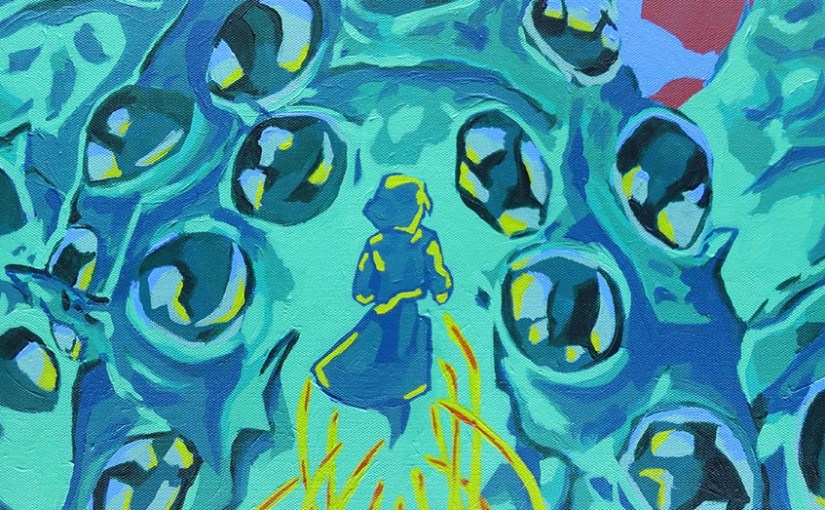
If you’re curious about this subject manner, its a stylized clip from Nausicaa Of The Valley Of The Wind. Look forward to more tutorial and art lessons in future posts.
*Please don’t use this photography hack to steal other artist’s unsold work; even for personal use. Please verify that any public works you photograph this way are verified to be copyrighted in the public domain!
Refilling a fountain pen is easier than you think. Follow these steps to carefully refill your favorite fountain pen.
Disassemble and clean your pen according to manufacturer instructions.
Select the ink for your fountain pen’s refill.
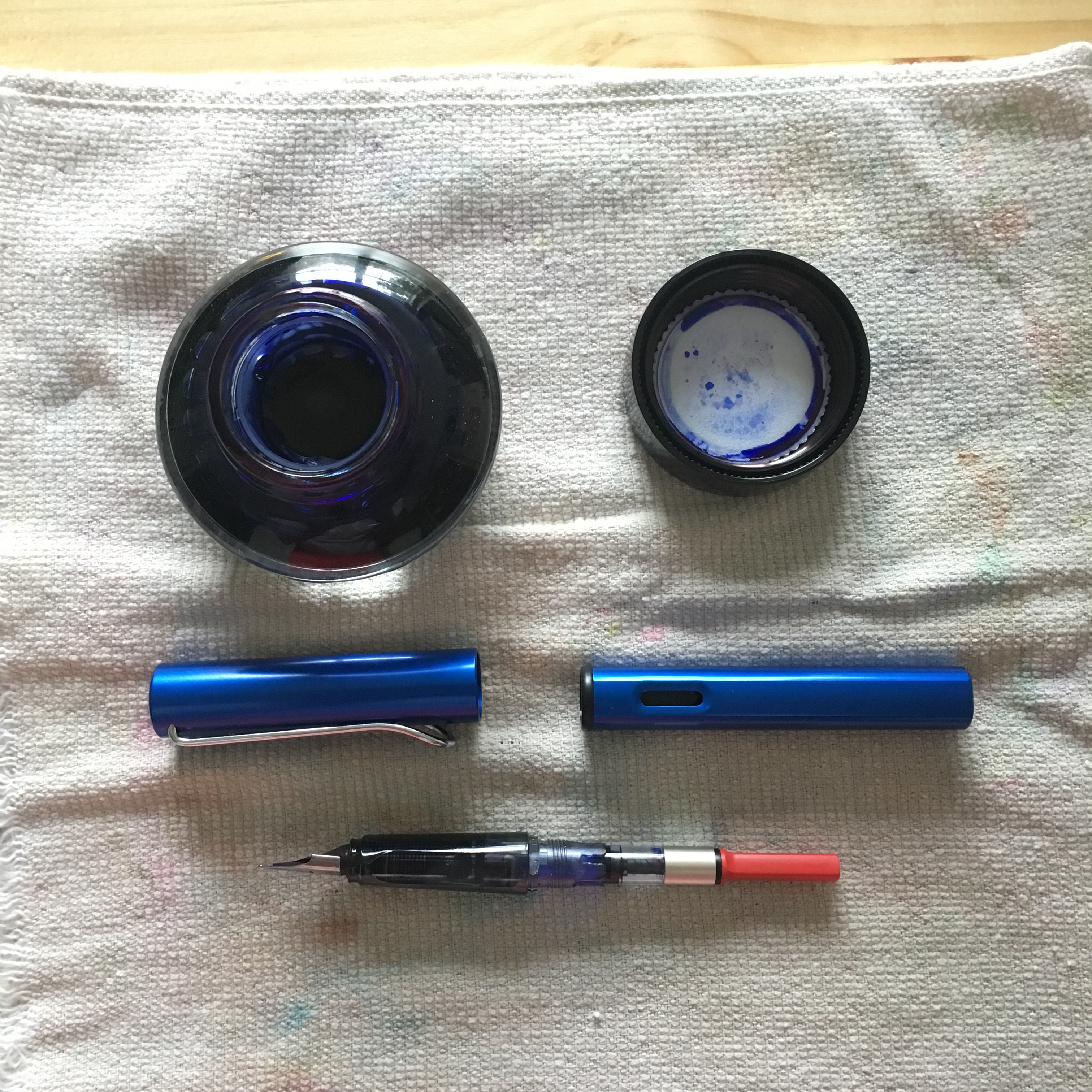
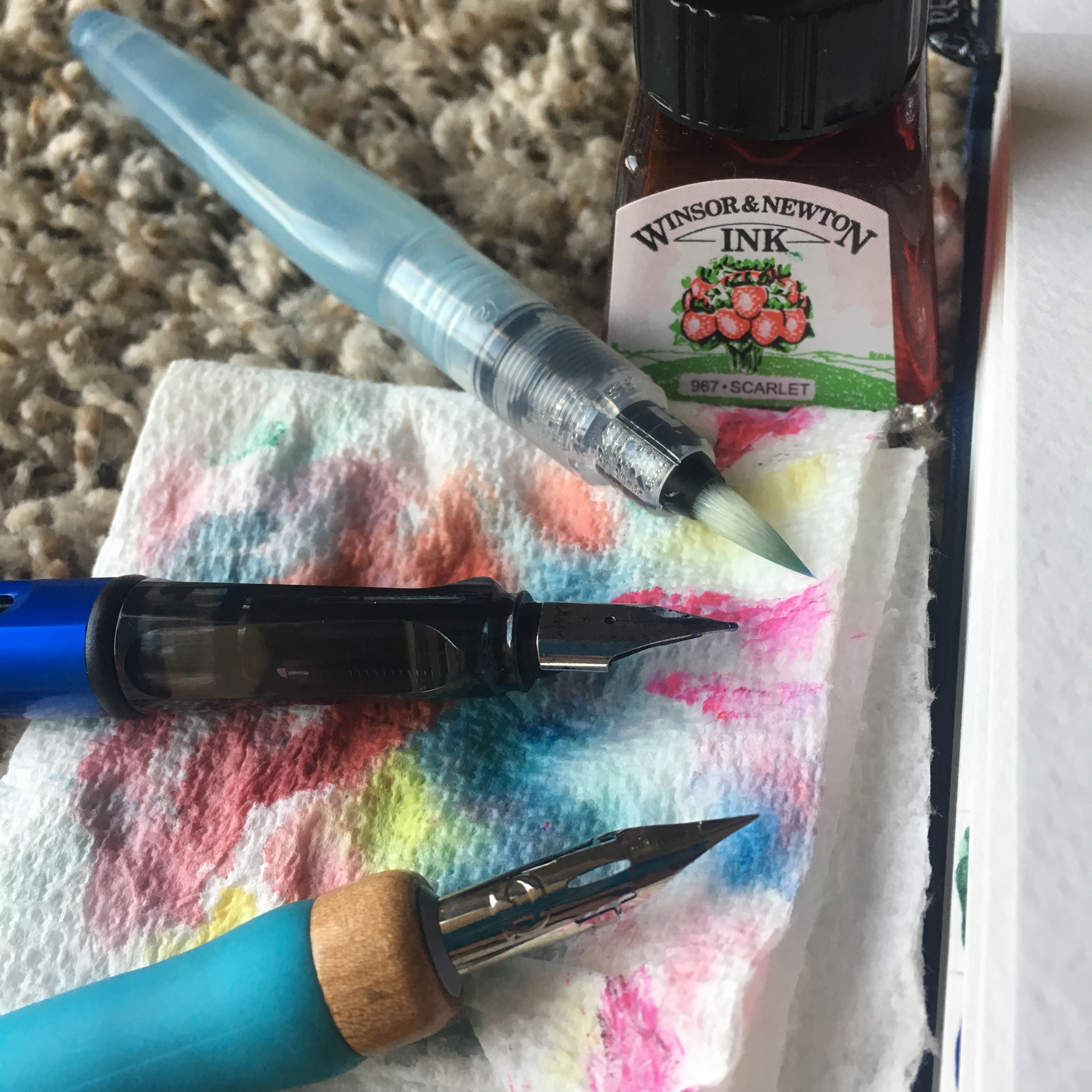
Protect your table’s surface with a towel or newspaper.
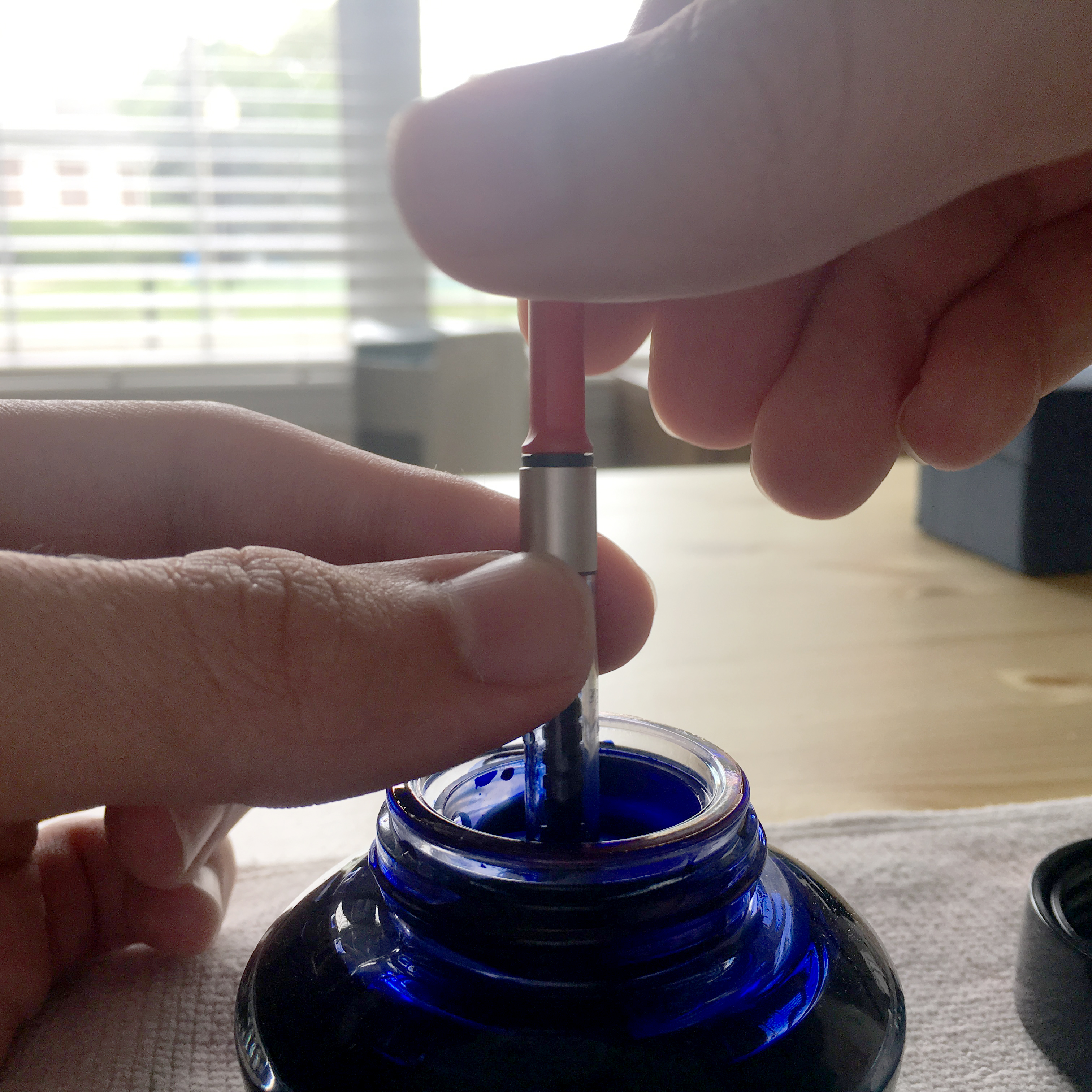
Carefully dip your converter cartridge or pen nib into ink reservoir and refill. (A piston converter twists) (A squeeze converter is squeezed)
Reassemble your pen and perform tests on scratch paper.
What kind of ink is best to refill your fountain pen?
Sailor ink is super smooth!
Not all inks are capable of refilling your fountain pen! Do some research before you go and fill your fountain pen with any old ink from the local Hobby Lobby. In fact, if you choose wrong, you’ll destroy your fountain pen for good!
You can always play it safe and purchase official replacement cartridges from your pen manufacturer. But if you want to choose your own ink, Sailor ink has served me especially well over the last few months. The possibilities really open up when you choose your own materials. Especially if you use waterproof inks for watercolors and ink washes.
You want to avoid any ink spills if possible. Before taking everything apart, lay down an old rag or a paper towel. In this tutorial you’ll see my awesome blue Lamy Safari pen. Lamy makes awesome introductory level fountain pens a range of ultra premium pens as well.
Every pen is a little bit different, but you should generally expect a similar procedure with whatever pen you have. Remove the cap, unscrew the barrel and separate it from the reservoir. Then you can pull out the cartridge.
This is a good time to clean your pen. Especially if you are switching colors or brands of ink. Get a simple cleaning solution made specifically for fountain pen maintenance. Before running solution through the pen, simply run warm water. If you have a very expensive pen made from rare materials you may not want to use warm water.
I recommend a piston converter. It is like a syringe with a screw instead of a plunger. Simply twist to move liquid in and out of the chamber. You can also fill the converter with water/cleaning solution and twist it to force water through the barrel of your pen and out from under the nib. If the barrel is clean, I shake it out and blow it slightly. Dry it out to the best of your ability.
When your pen is dry, you can remove the nib by wrapping a piece of tape around it and carefully pulling it off. Clean and excess or dried ink off the nib and put it back on your pen.
Refill the converter with ink.
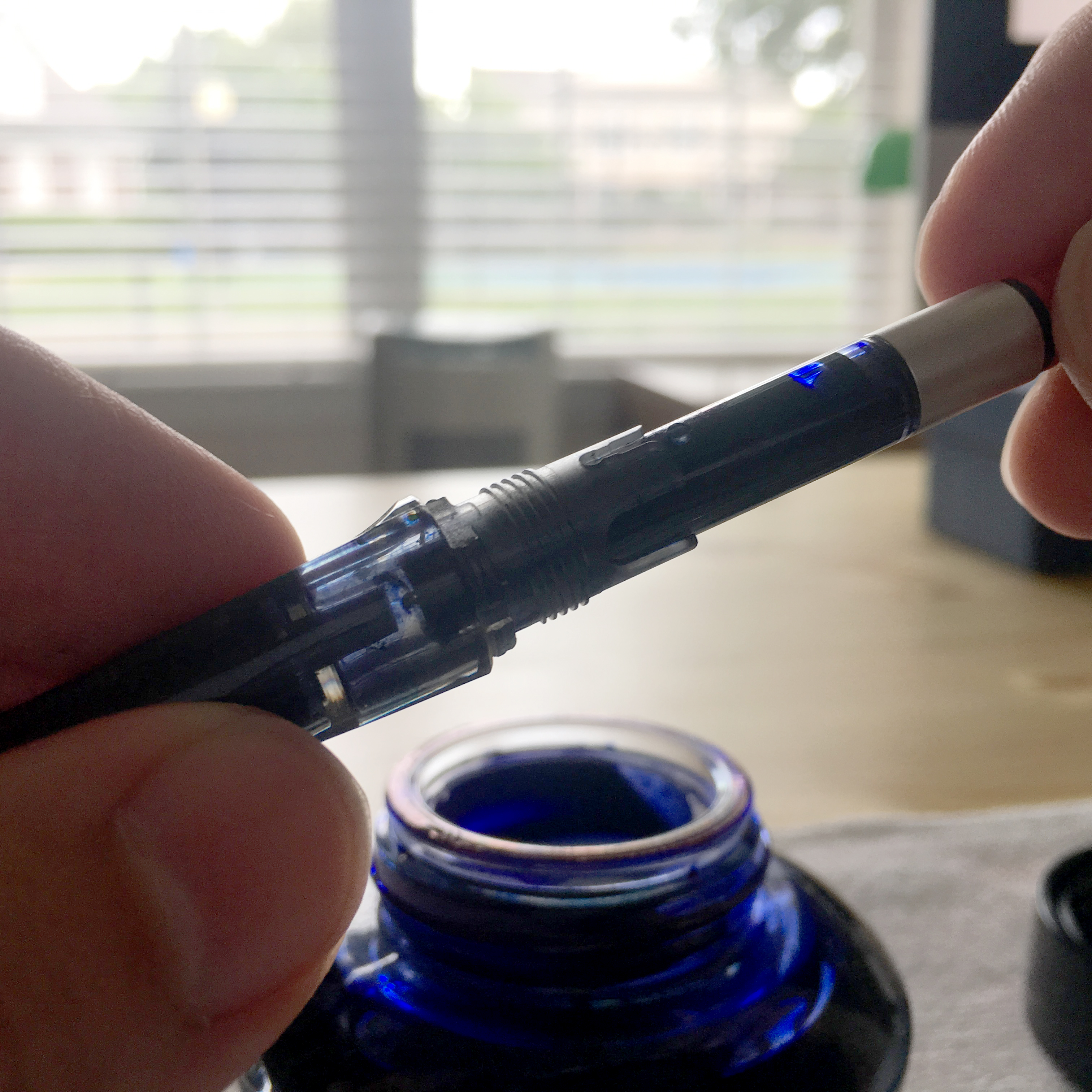
Now that your pen is cleaned, you can refill you converter. Make sure the piston is all the way at the bottom of the converter. Dip the end of the converter into your ink well and twist the piston so it fills will ink. Replace the piston into the barrel of the fountain pen and let gravity take care of the rest.
Some fountain pens are slightly different. Rather than dipping the piston, you can actually dip the nib into the ink well and twist the piston for the same effect. Just wipe the excess off the nib/pen when you do this. This is more common in higher end pens.
Make sure piston is extended all of the way
Carefully fill converter
Reinsert the converter
Take your refilled pen out for a test drive.
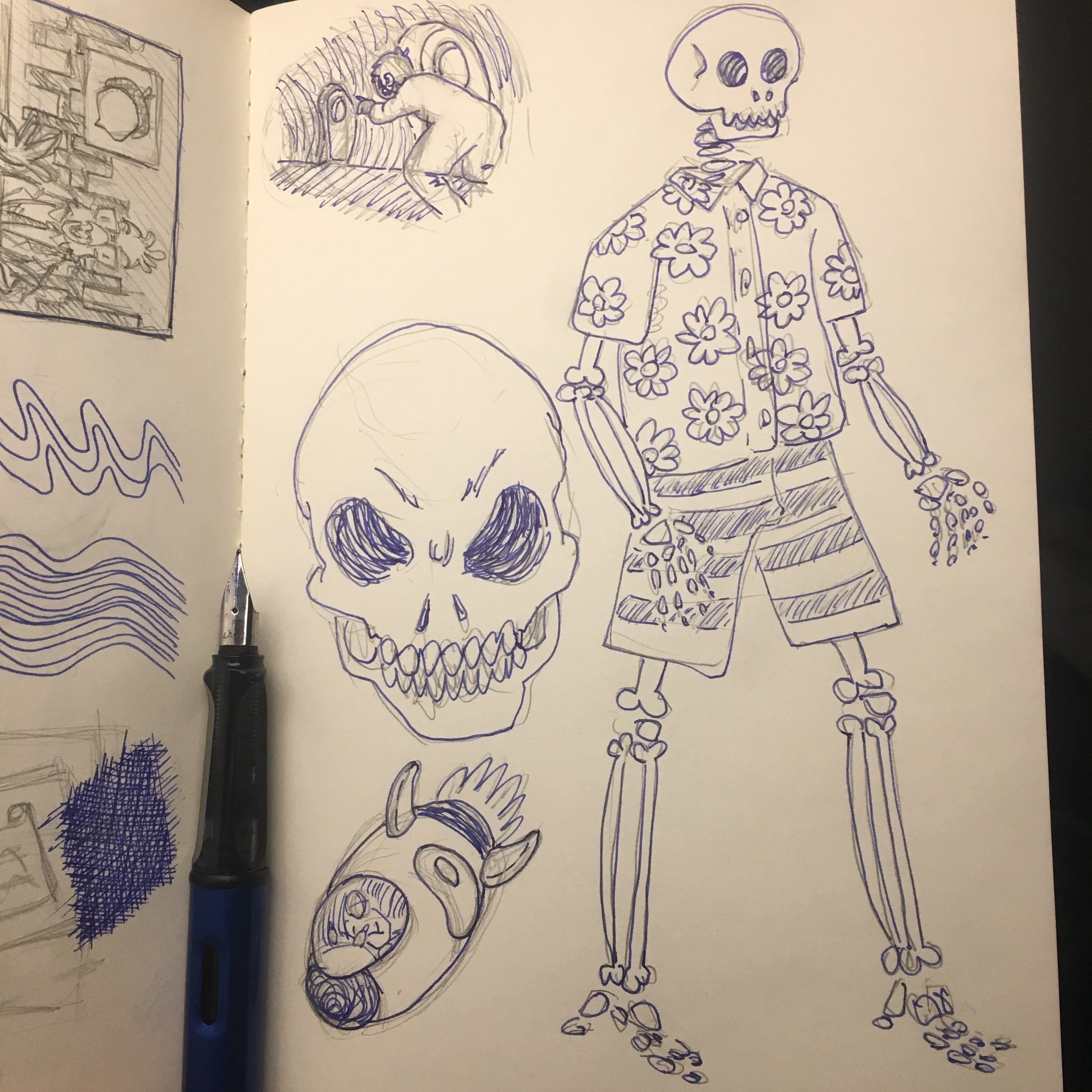
Make some marks with your pen and get the ink flowing. Some simple hatching or doodles should get the creative juices going. Depending on how you use your pen you may refill it fairly often. I refill my pen about every two weeks.
Test out your freshly refilled pen!
Doodlez
More doodlez
What sets fountain pens apart?
What makes a fountain pen different?
Fountain pens were all the rage before ball point pens took over. But why are they making a comeback? For starters, improvements in the craft are allowing them to leak a lot less than they used to. Fast drying inks that don’t clog have also come a long way in recent years. But the biggest reason for the comeback is probably just hipsters wanting to set themselves apart(haha).
I really enjoy carrying my fountain pen to and from the office everyday. This pen is kind of like an accessory to my smart phone in the way it’s always near. I can’t explain why I love doodling with this pen. Maybe it’s because it takes a lot of TLC to keep one of these pens going for a long time.
Here is a free and easy way to get your art directly on your iPad with no hassle. Scanners can be expensive for new artists, but there are free alternatives out there on the web.
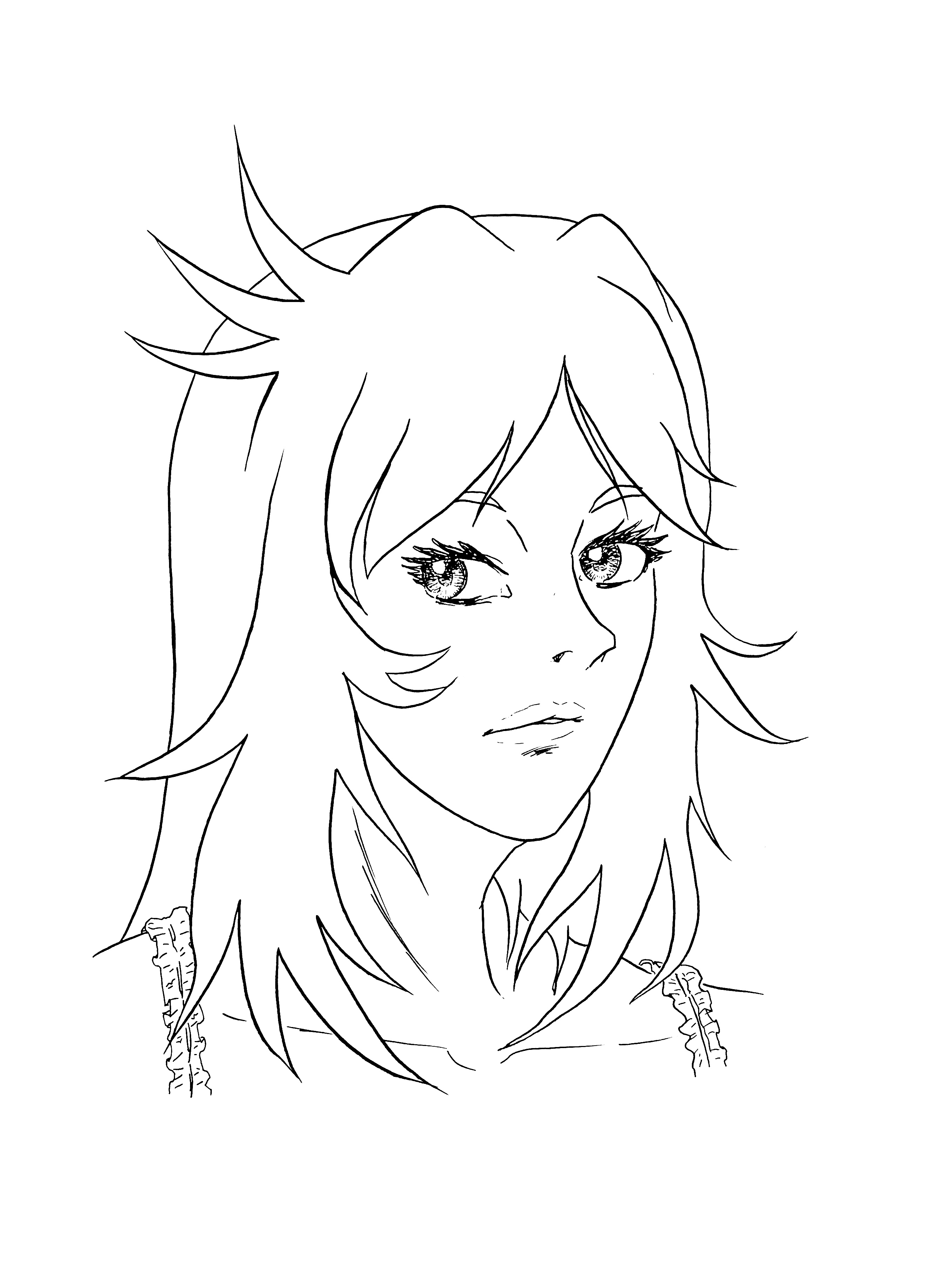
Draw to your heart’s content. For the sake of this tutorial I am using the line art from a previous tutorial I made that was all about making traditional line art.
2. Download the FREE iScanner App
I used two apps for demonstration purposes. The first app was bundled with my platen glass scanner in my home office. While the second was the free iScanner app. Below is a side by side comparison of the platen glass(top) and the iScanner app(bottom). I was honestly surprised at how well the iScanner app performed when I first downloaded it. I could have easily used either scan for the final work. The iScanner app has the slight disadvantage of being limited to the 12 megapixel camera on the iPad. But if you are making webcomics, or you are used to doing digital paint overs, the iScanner app is going to suit you exceedingly well!
Traditional scanner
iScanner App
3. Import new scan to Procreate
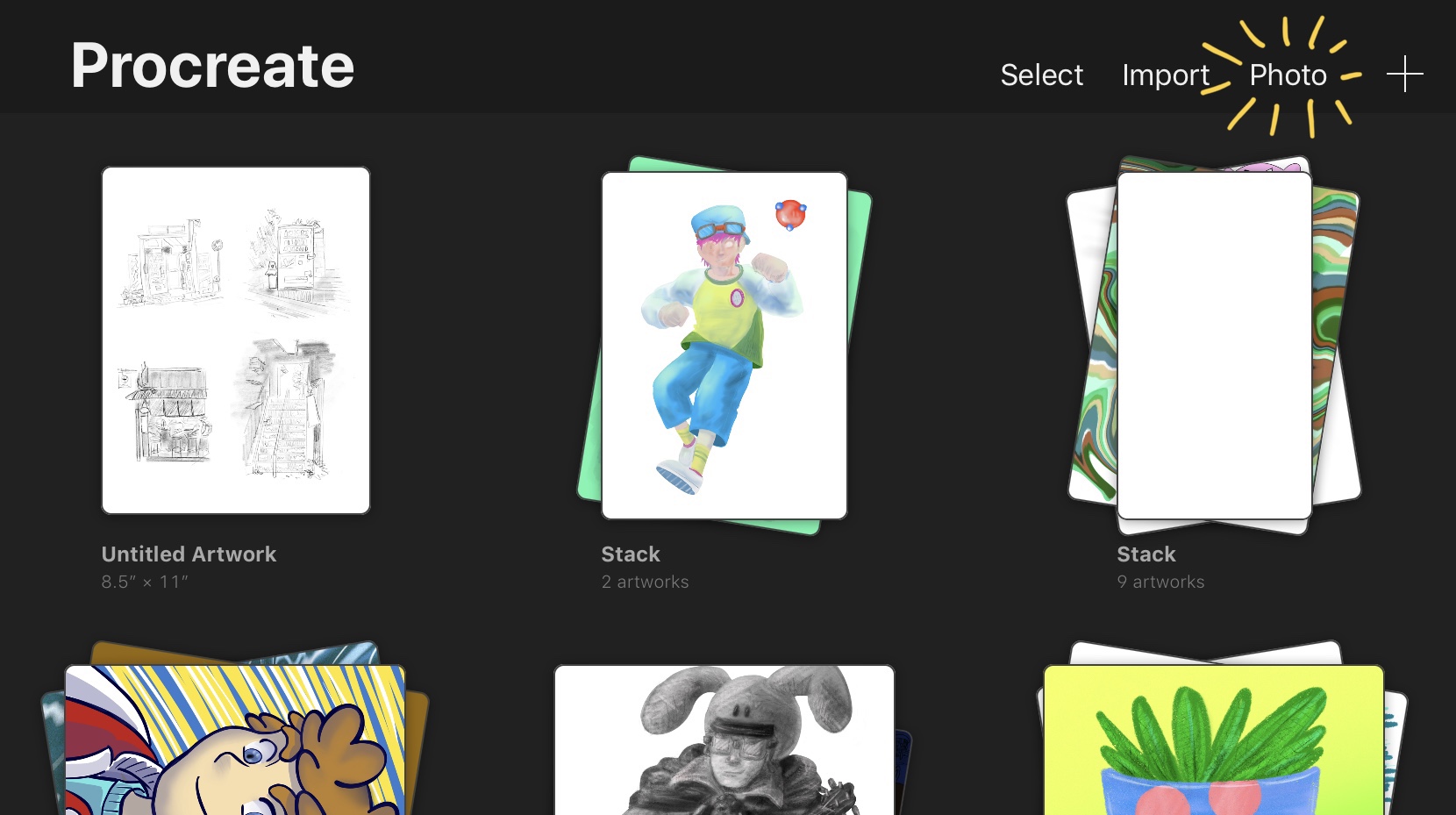
Procreate is an amazing, affordable, and powerful digital painting tool that turns your iPad into a canvas when paired with the Apple Pencil. Follow the steps below to import a photo to your Procreate canvas so you can finish your masterpiece. Simply open the gallery and select Photo and then browse your camera roll for the scanned image from iScanner.
Tap Photo
Select iScanner image
4. Add the finishing touches
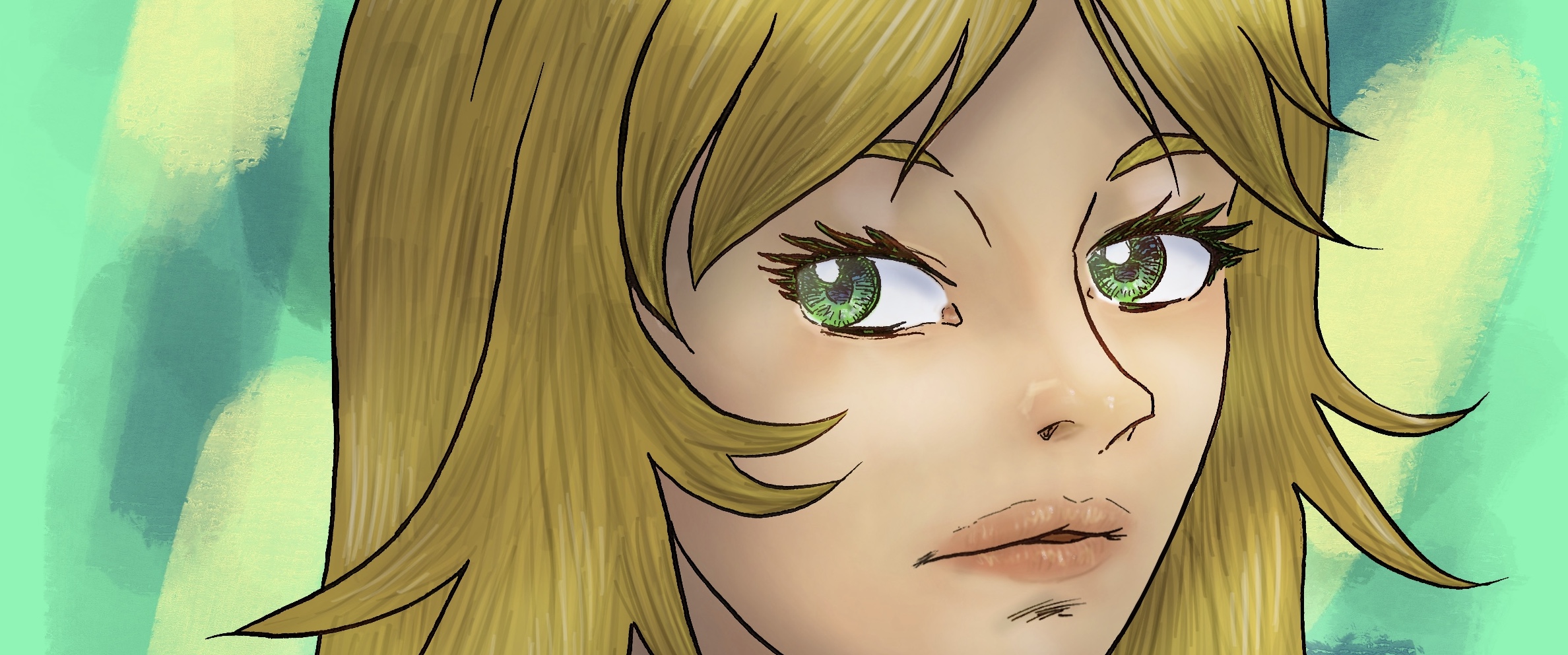
Take you time and enjoy the rest of your creative process. My finished piece is below. If you like tutorials like this feel free to visit our home page. If you have questions or suggestions for future topics feel free to email at dallasdraws@gmail.com
While many artists strive to master digital art as a medium, there are many who find a lot of pride in making work the old fashioned way. But even if oils are your medium of choice, there are several reasons you need to have some fluency in Photoshop or a similar software.
Digital Color Sketch: Stephen Dallas Copyright 2018
You NEED Reproductions of Your Work
The primary reason you’ll need some skills in Photoshop is to create high quality reproductions of your work. What if your studio catches fire? Even if you loose the original paintings, you’ll be able to stretch out the money earned by your paintings on the web. Even if they’re destroyed or sold.
You’ll Make More Money
NOBODY should settle for only selling their paintings once.
Thanks to the internet, artists have more flexibility than ever when it comes to selling copies of their work. Many artists dream of having their work in a gallery and selling to an audience of oooing and aweing spectators, but this is only a small portion of your art’s earning potential. Creating digital prints and reproductions may not sell for as much as the original, but they have the potential to have an infinite volume produced.
Rather than simple taking of photograph for your instagram of the framed final piece, you need to scan your work and create a high quality digital replica. Utilizing Photoshop to archive your work digitally allows you to make a plethora of products with your art on it.
Legends like James Jean create limited edition runs to build hype and keep that sense of scarcity. Let us say an original painting sells for $1000, but your 200 piece, limited edition prints sell for $50 each. That means your limited edition prints sold for 10 times the amount of your original print! And if the demand is there, you can always make a 2nd edition run.
You Can Publish a Fine Art Book
In the same vein as making reproductions, creating a curated art book is a great way to spread out the value of your work over time. Many people who can’t find the will power to pay $50 for a single art print might be able to pay $50 to have 100 pieces of your work in the form of a book.
There are many viable vendors who can print custom orders of books or even books on demand for artists who know how to work on the world wide web.
The Tools You’ll Need to Master Inside of Photoshop
Photomerge
This is how you take a 10’x10′ painting and scan it with one scanner! If you have a camera, you’ll notice the maximum size you can usually print is around 18″x24″, but what if you want to reproduce your large scaled art at its original size?
Photomerge uses an algorithm in the background to manipulate multiple scans or photos into one large document. Navigate to the photomerge tool, then select all the scans or photos your are compositing. Click ok and watch the beach ball spin. Its a little taxing on your computer’s graphics processor, but totally worth the wait to have that large, crisp scanned image as a backup!
File>Automate>Photomerge
Color Balance and Levels
Sometimes your scanner or printer just doesn’t handle the colors in a way that reflects the original piece. Don’t get frustrated. There are several ways to work around this.
Before you ever touch the original colors, consider your hardware. Apple computers tend to have nearly perfect color perception. But if you have a cheaper monitor, that may be the source of your color problems. You can calibrate a cheap monitor with some semi-affordable tools. You could also buy a true color monitor, but those are pretty pricey. If you can’t afford either of these options, you can always put the file of a thumb drive and do a high quality test print for less than $10. There are also online art printing services you can use for testing at a similar price.
Image>Adjustments>Color Balance
The levels tool is similar to the color balance in the way that it shouldn’t be touched until a test print has been reviewed. Adjusting levels lets you get control over contrast in an image and can help give your painting a bit more depth if there were details washed out in a scan or photograph.
Image>Adjustments>Levels
Crop Tool
This tool is essential for framing your photomerge composition into its original frame and aspect ratio. Never size your artwork upwards. This distorts the quality and will pixelate your original paint-strokes. Always Bring the edges inwards, never stretch the picture outwards.
There is special software like Gigapixel AI that claims it can upscale work tremendously. Some of the work output with this software is really amazing, but it still tends to have a unique sort of digital artifacting that are undesirable when making high quality prints.
Clone Stamp, Smudge, and Healing Brush Tool
The Clone Stamp allows you to sample another section of the painting and very specifically copy it. Its almost always best to turn down the hardness of the brush so your samples look more realistic.
The Smudge Tool allows you soften an area of a painting. Its also good for blurring sections you want to feel out of focus. If you feel your image is too flat this can create a sense of more depth. It’s sort of like a camera focusing on one object and not the rest of the photograph.
The Healing Brush is made to remove spots and blemishes from human faces, but you can also use it for removing accidental artifacts like stray brush hairs that stuck to your painting. So it’s a lot like the clone stamp except that you don’t need a sample to copy. Photoshop does all the work.
These three tools go hand in hand. They are for removing stray hairs and artifacts that shouldn’t have made their way into the photograph. Don’t over correct so much that you destroy any likeness to the original painting. You want to keep those original brush strokes in tact!
Keep it Simple
If you’ve never used Photoshop, it’s easy to get overwhelmed by the infinite palette of features and tools to choose from. Try not to deviate from these few tools mentioned for now. These fundamentals are the bedrock of your Photoshop expertise. Get them right!
Here is a free Photoshop alternative called Gimp. It is almost the same, but all the names are changed for the features I described above. So it will take a little more exploring to master.











 Growth Spurt Creative